Set Up Notifications That Work for You
Notifications: useful or noisy?
Notifications can tell you when a deposit has arrived, when Support has replied, or that today’s quiz is waiting. They can also pull you back to the app more often than you’d like.
Studies of investing apps have found that alerts, prompts and game-like features can lead people to trade more often, and trading more often tends to cost more without making people better off. So the goal isn’t to turn everything on. It’s to keep the notifications that help you and switch off the ones that don’t.
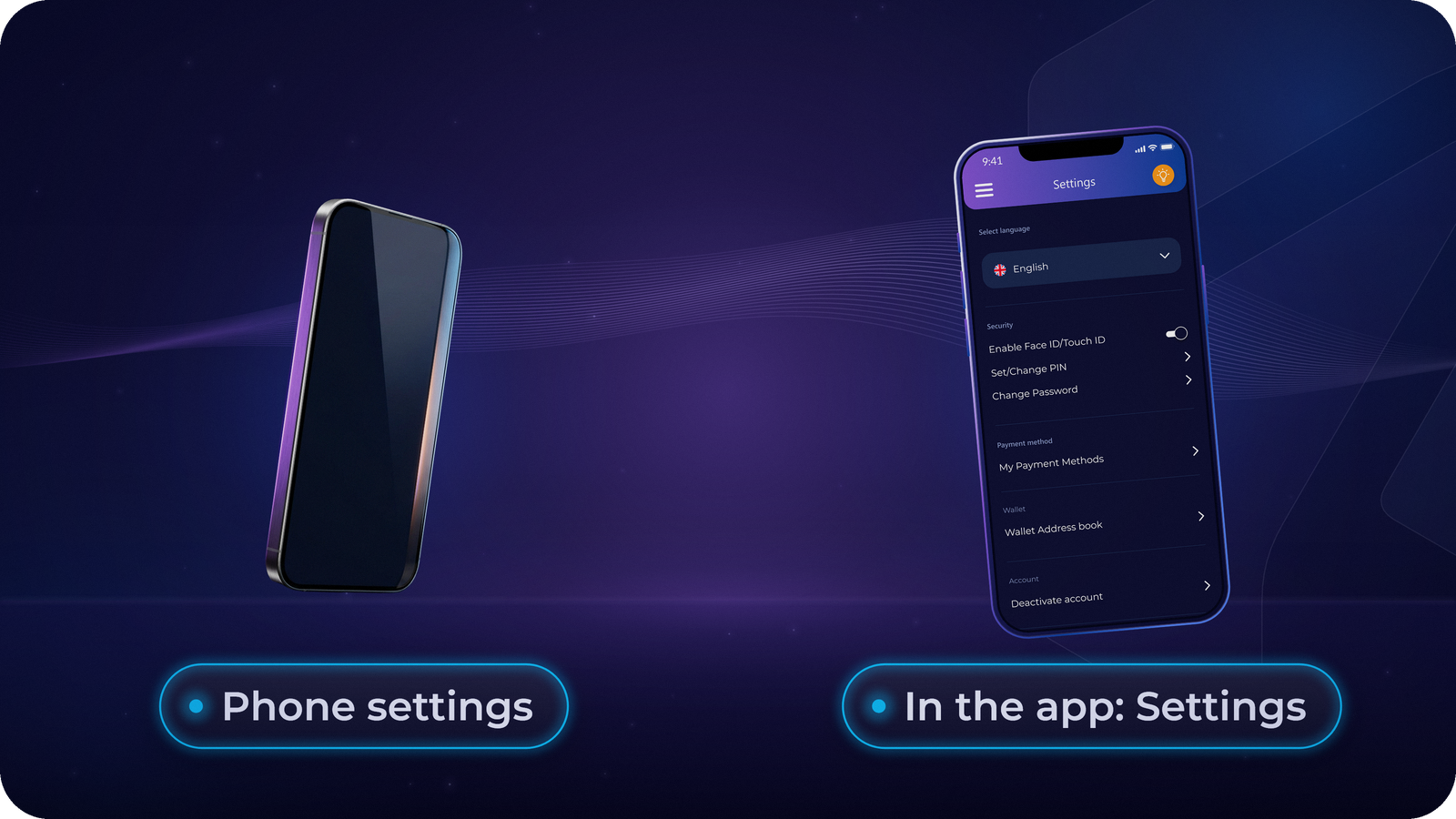
Two places control them: your phone’s settings decide whether Rumos may notify you at all, and the app’s Notification Preferences decide which kinds you get. The next two steps cover Android and iPhone: read the one for your phone.
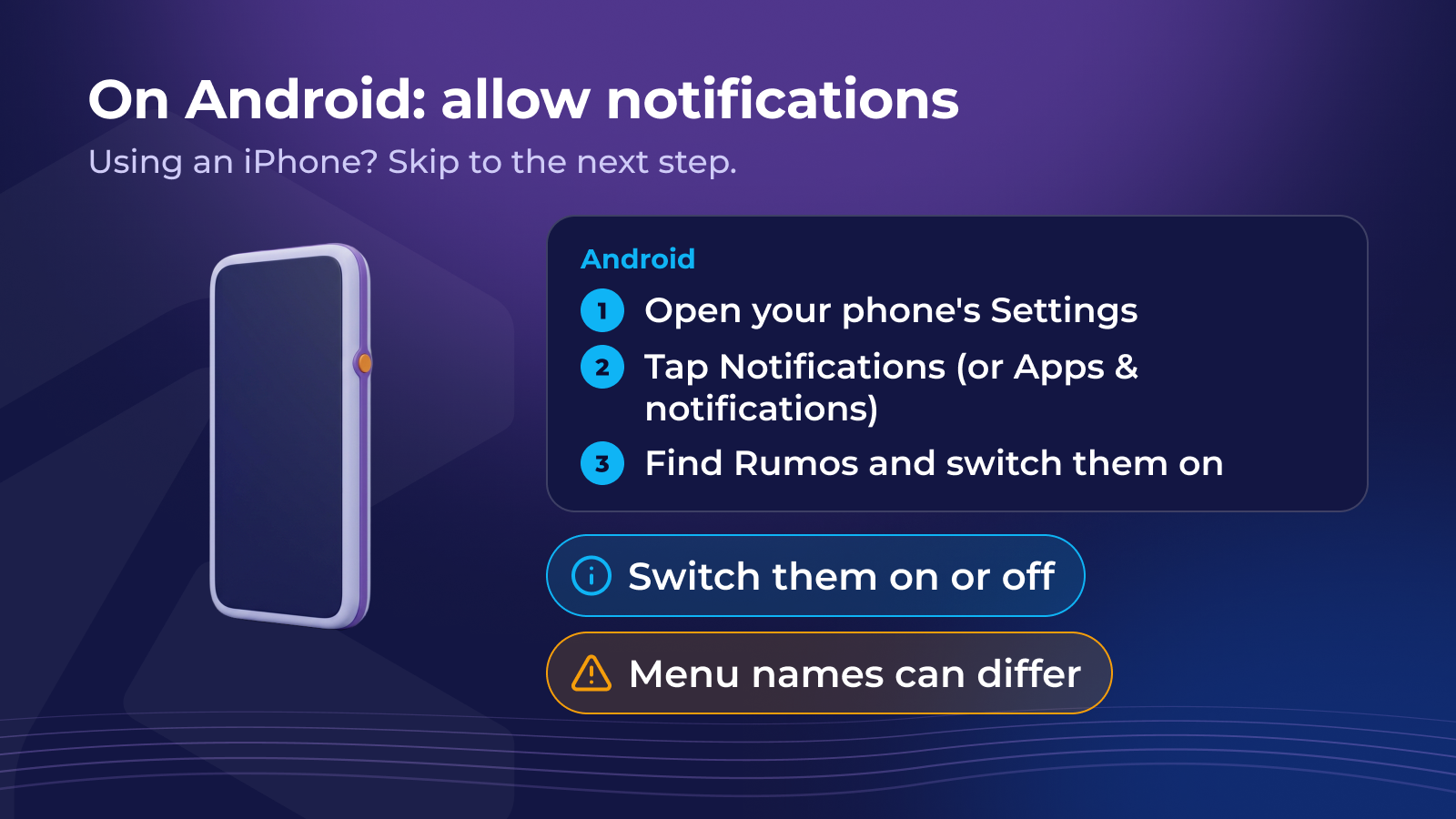
On Android: allow notifications
Using an iPhone? Skip to the next step.
Newer Android versions ask whether Rumos may send notifications. If you said no, or want to change it:
- Open your phone’s Settings.
- Go to Notifications (on some phones: Apps & notifications).
- Find Rumos in the list of apps and open it.
- Switch notifications on or off. You can also switch individual categories.
Menu names differ slightly between phone makers. If you can’t find Rumos in the list, update the app to the latest version first. You can also keep notifications on but turn off their sound or pop-up.
On iPhone: allow notifications
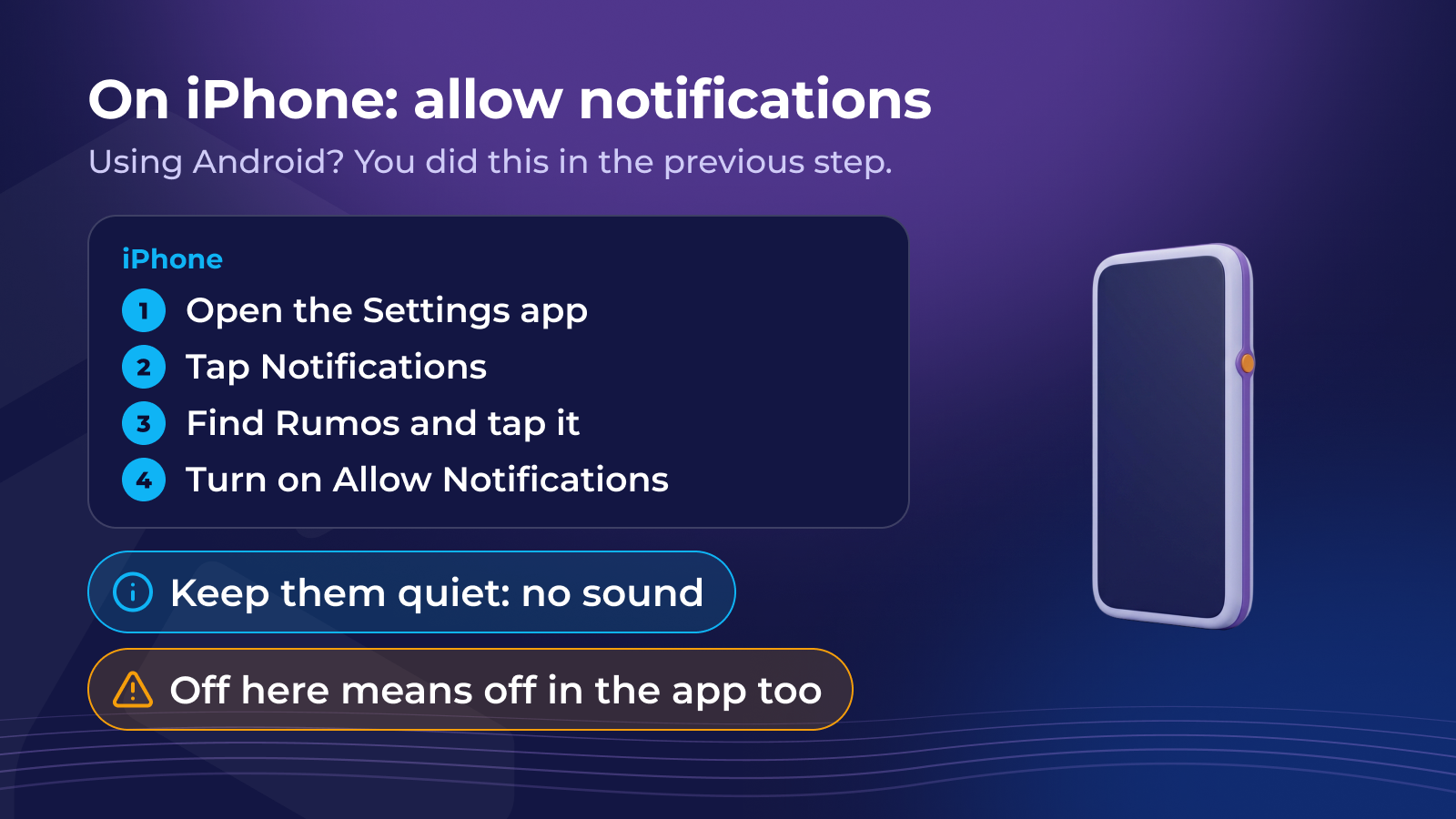
Using Android? You’ve already done this in the previous step.
- Open the Settings app.
- Tap Notifications.
- Find Rumos and tap it.
- Turn on Allow Notifications, then choose where they appear: on the Lock Screen, in Notification Centre or as banners.
If Rumos isn’t in the list, open the app once and update it to the latest version.
Notifications you switch off here stay off, whatever you choose inside the app. For fewer interruptions, keep them allowed but turn off sounds, or let them collect quietly in Notification Centre.
Quick check
You switched off notifications for Rumos in your phone’s settings, but Price Alerts are on in the Rumos app. What happens?
Choose which notifications you get
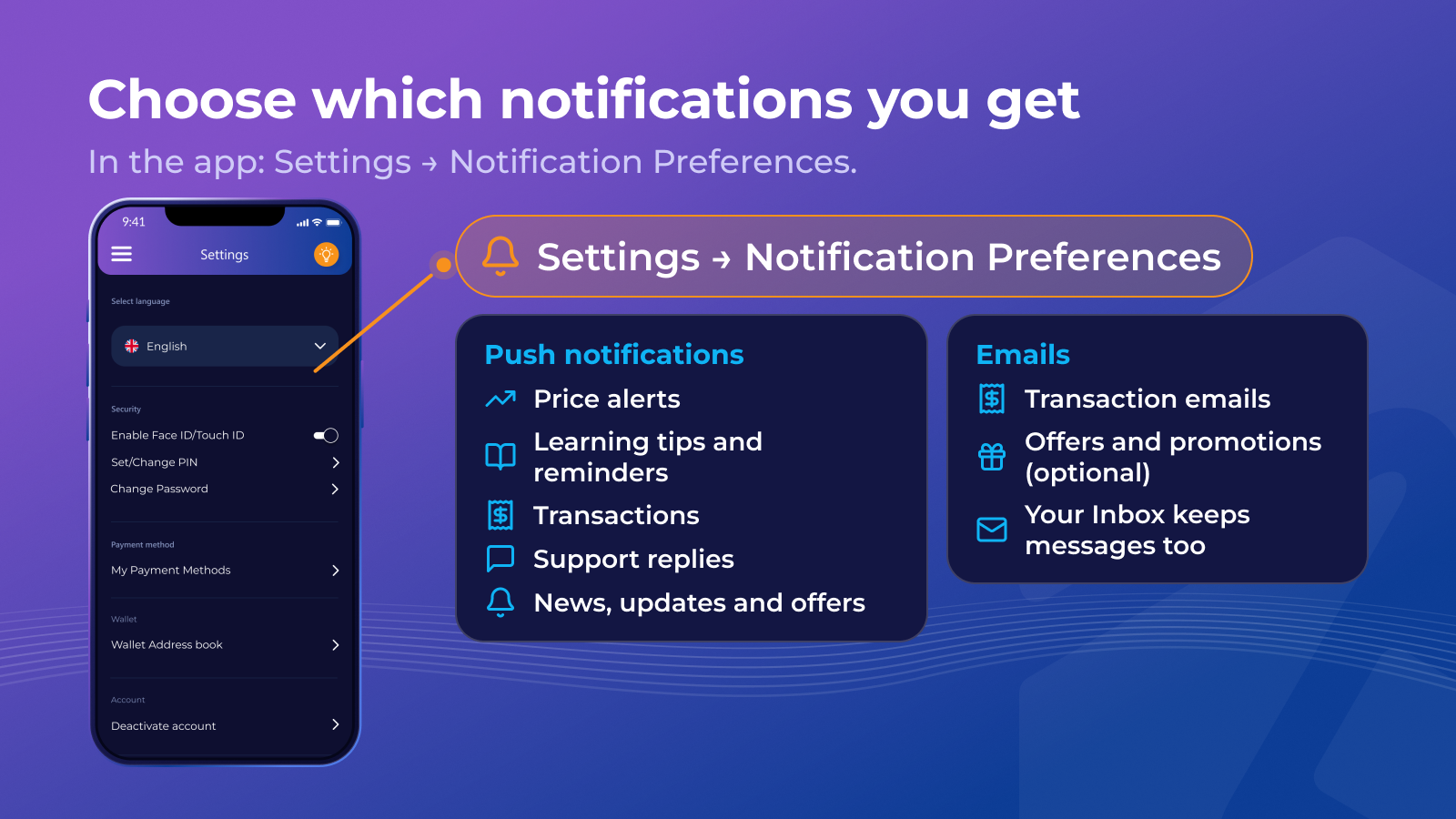
In the app, open Settings → Notification Preferences. You’ll find two groups.
Push notifications:
- Price Alerts: big price moves
- Educational Tips & Reminders: lesson and quiz reminders
- Transaction Information: deposits, withdrawals and other transactions
- News & Updates, and Special Offers & Other
- Support Messages: when Support replies
Emails (Mailing Preferences): Transaction Emails confirm your buys, sells, deposits and withdrawals; Exclusive Offers & Promotions are optional.
Your Inbox in the app keeps messages too. Choose its categories in Inbox Settings.
Quick check
Select all that apply: which Rumos notification settings help you notice quickly if money moves in your account without you?
Select all that apply
A calm setup to start with
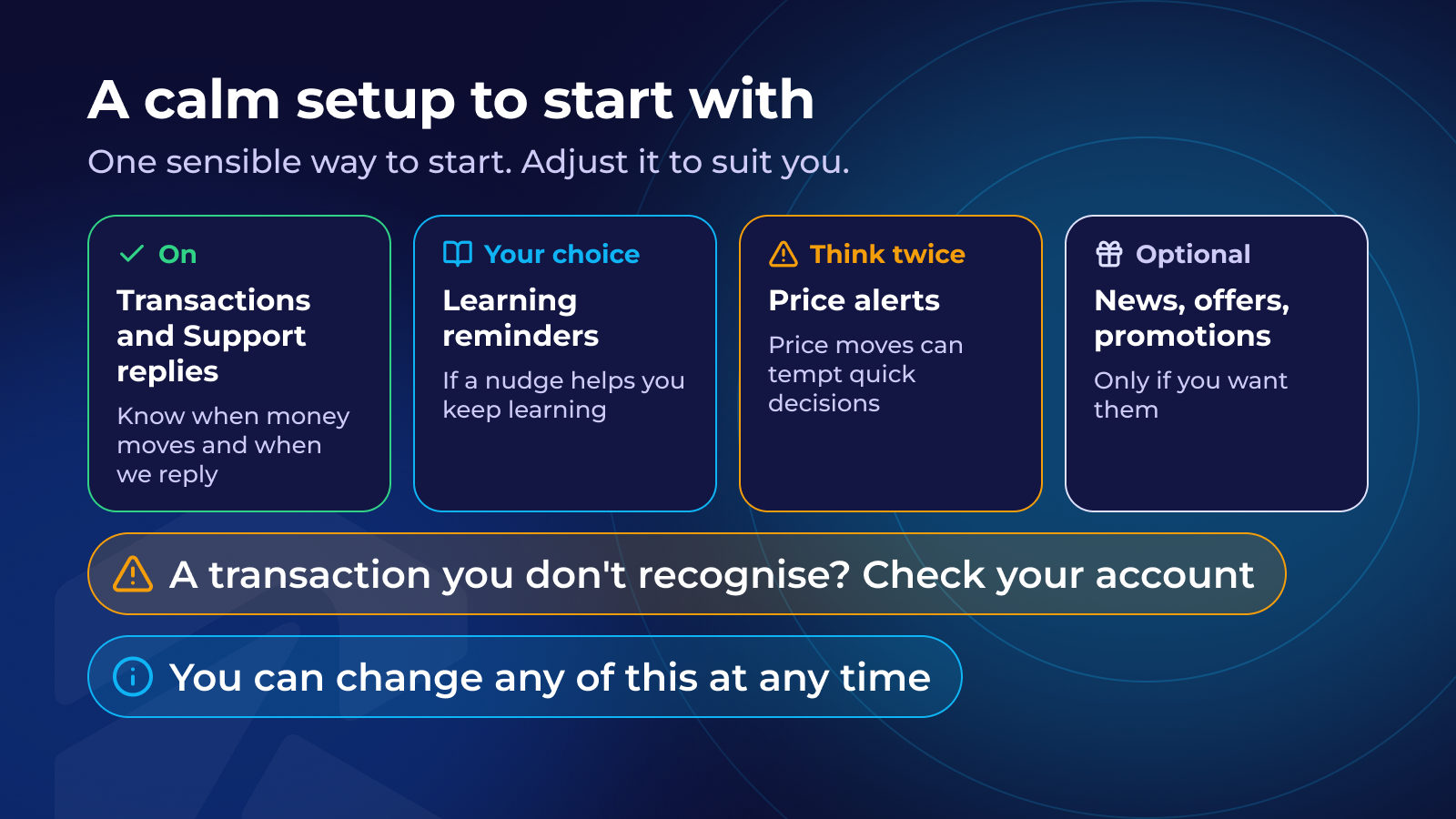
Here’s one sensible way to start. Adjust it to suit you:
- On: Transaction Information and Support Messages, so you know when money moves and when we reply. If you ever get a transaction notification you don’t recognise, check your account straight away.
- Your choice: Educational Tips & Reminders, if a nudge helps you keep learning.
- Think twice: Price Alerts. Price moves can tempt you into quick decisions. If you notice you trade because of alerts, try switching them off and checking prices at times you choose.
- Optional: news, offers and promotions.
You can change any of this at any time.
Quick check
Tom notices he often buys or sells crypto right after a price alert, and later regrets it. What is a sensible change to his notification settings?
Recap
- Your phone’s settings decide whether Rumos may notify you at all; Notification Preferences decide which kinds.
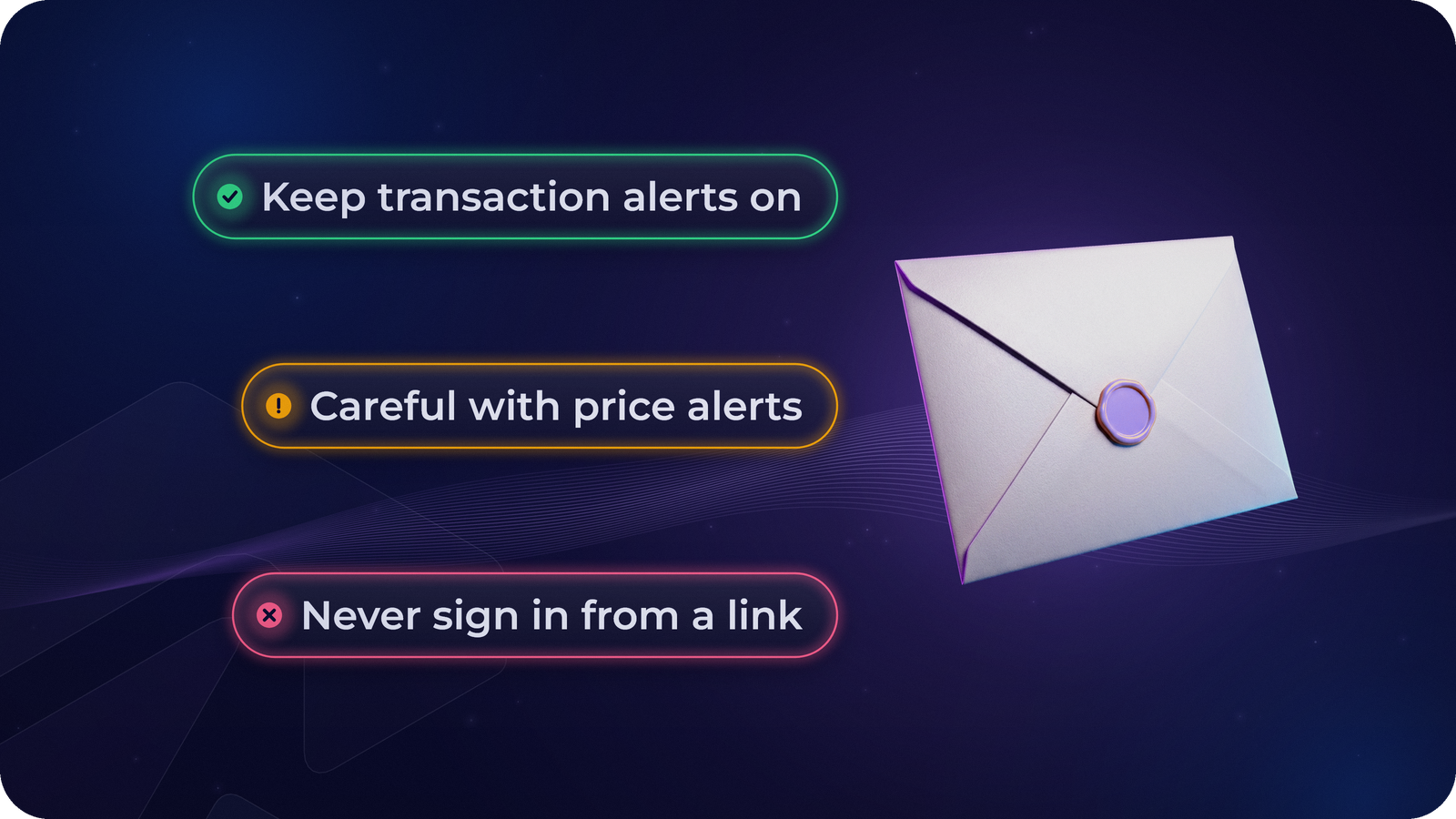
- Keep transaction and Support notifications on: they help you spot anything unusual.
- Choose learning reminders if they help, and be careful with price alerts.
- Marketing emails are optional; switch them off under Mailing Preferences if you don’t want them.
- If a notification ever asks you to tap a link and sign in, open the app yourself instead. Rumos will never ask for your password, your PIN, your one-time codes or a recovery phrase.
Review your choices any time in Notification Preferences.
Next: the three locks that protect your account. Secure Your Account
Lesson complete!
0 / 3
That's the first chapter. Continue this course — and unlock the rest — in the Rumos app.